Official account guide
Miller Pay login: official sign-in and MPIN guide
Use the exact MillerPay login path, understand what appears after password verification, and avoid giving account details to a lookalike website.
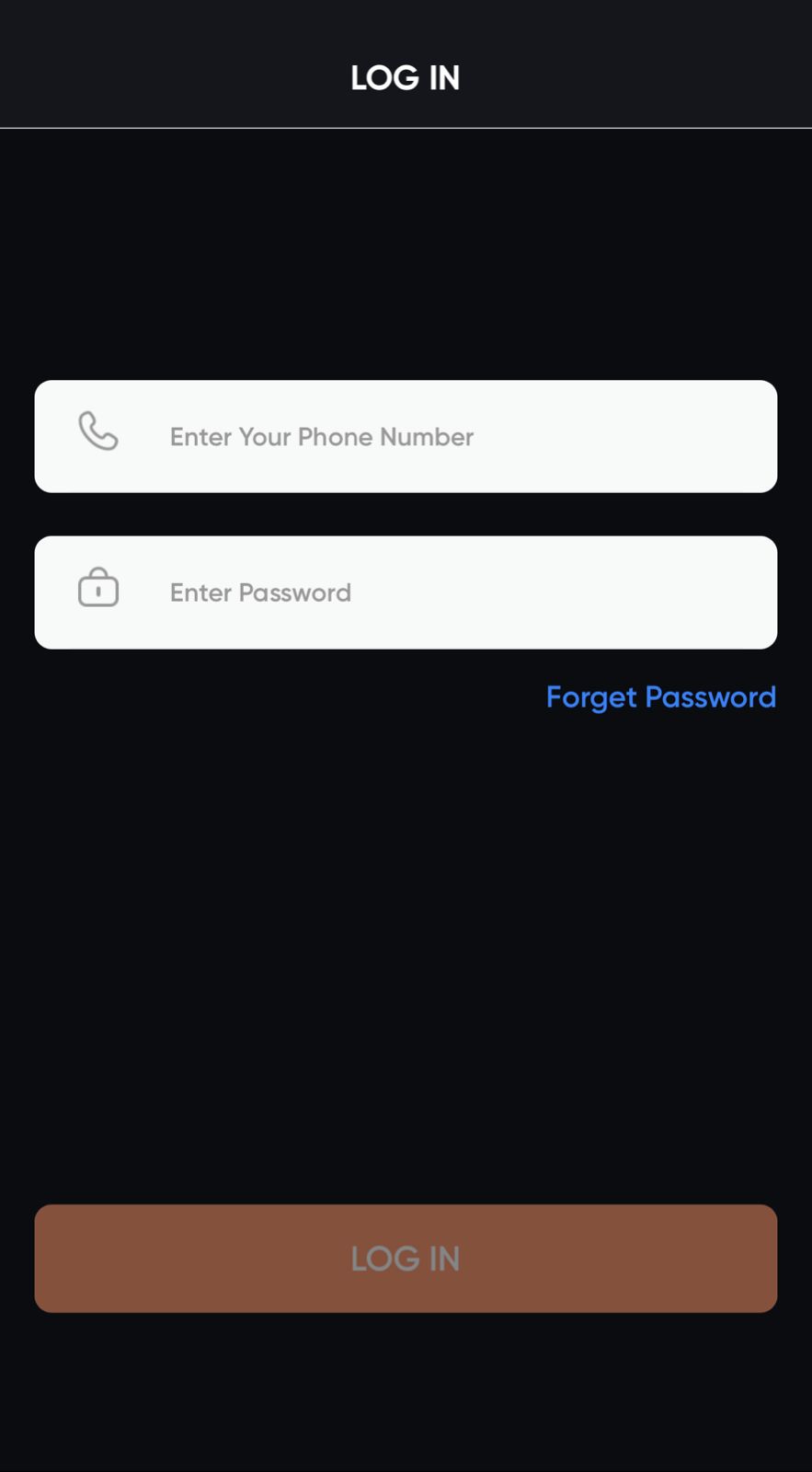
Official Miller Pay login URL
Open millerpay.online/login. Check the domain before entering your phone number or password. The address bar should use HTTPS and should not contain added words, spelling changes or an unrelated domain.
Login and MPIN steps
- Enter the 10-digit mobile number connected with your account.
- Enter your password and use the eye button only when nobody can see the screen.
- Tap Login and wait for the six-digit MPIN screen.
- Enter the MPIN to continue to the Miller Pay home screen.
If the page does not continue, verify the phone number, network connection and domain. Do not repeatedly share or send the password or MPIN to anyone claiming to be support.
Protect your account
- Never share a password, MPIN, OTP or wallet seed phrase in chat.
- Do not save credentials on a shared phone or public computer.
- Use a unique password that is not reused on social media or email.
- Open the login page from this official website instead of a forwarded link.